
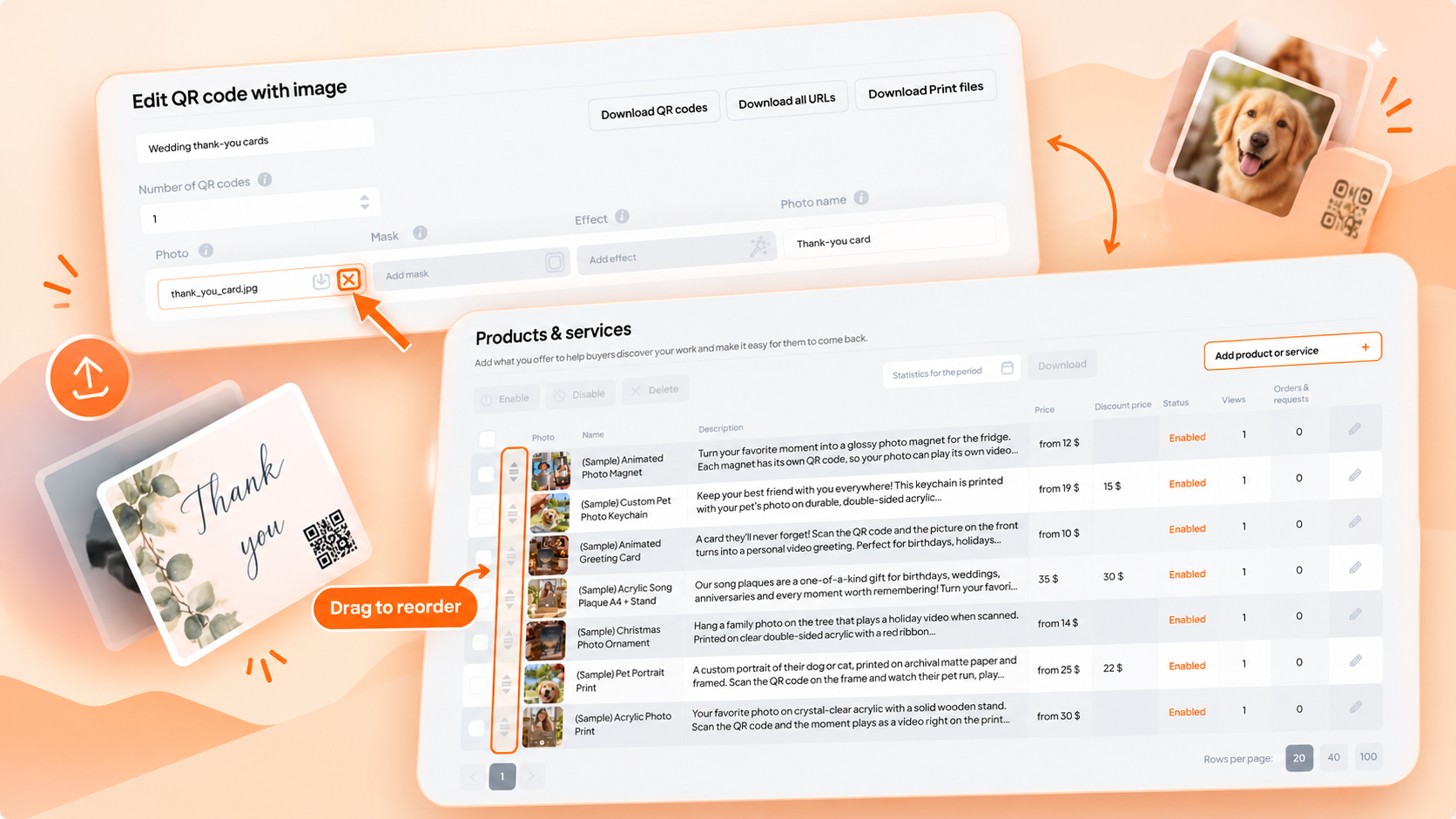
Intro
This update is all about saving you time. Four changes, most of them requested by sellers who run dozens or hundreds of AR products:
Here's what each one does and how to use it.
- Better reports — see when each video was uploaded and export daily scan stats.
- Custom product sorting — arrange your products the way you want, in the dashboard and the app.
- Replace a trigger image yourself — swap the image on any AR activation without contacting support.
- Newest-first lists — find recent orders and products faster when you create a message or an ad.
Here's what each one does and how to use it.
Better reports: upload dates and daily scan stats
Your reports now show more of what you need to manage a growing catalog.
Video upload date. Each activation in Activation history → My activations now shows the date and time its video was uploaded. If you run many AR products, this makes it easy to see which videos are new, which are old, and how each one performs over time.
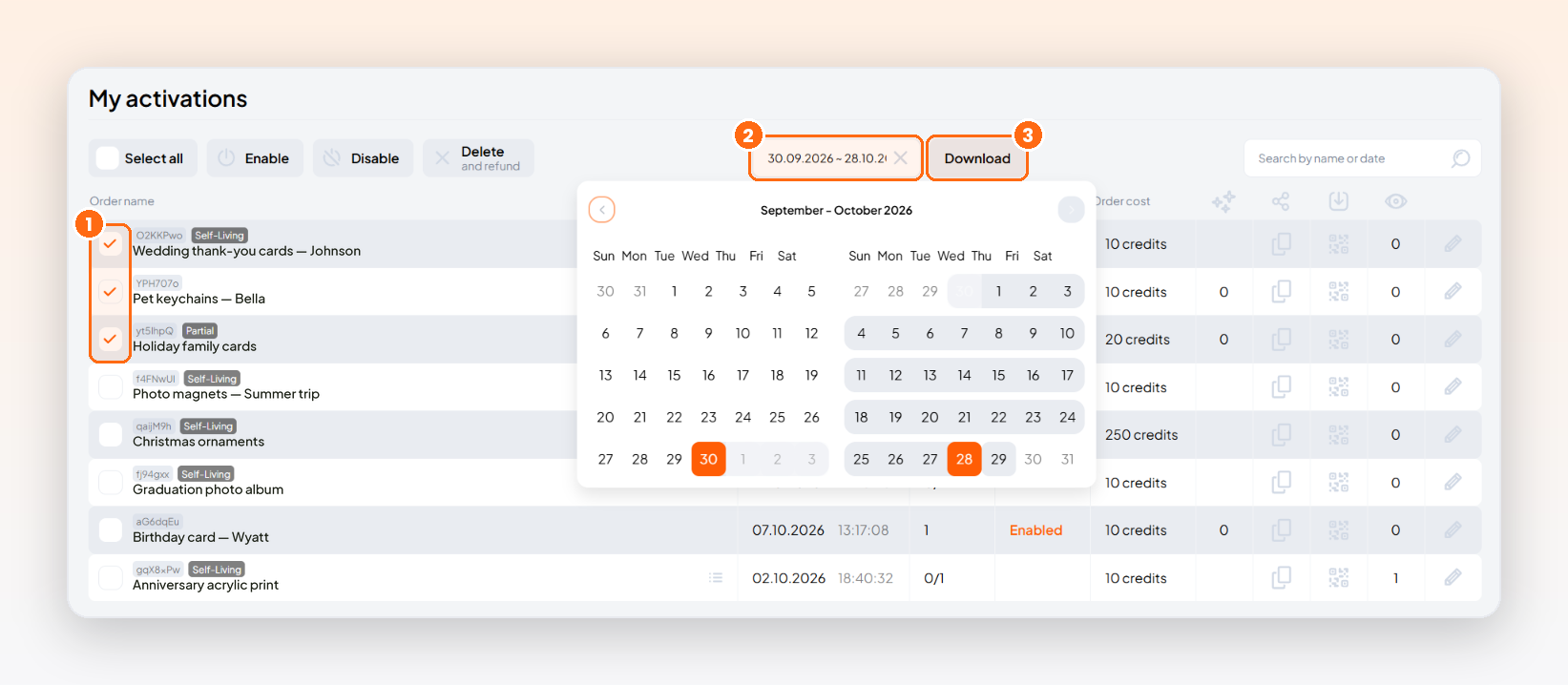
Daily activation stats. Select the orders you want and export their scans and activations as an Excel file (XLSX), broken down by day. Use it to spot your best-performing products, see how a holiday campaign went, or share results with a client.
How to use it:
Video upload date. Each activation in Activation history → My activations now shows the date and time its video was uploaded. If you run many AR products, this makes it easy to see which videos are new, which are old, and how each one performs over time.
Daily activation stats. Select the orders you want and export their scans and activations as an Excel file (XLSX), broken down by day. Use it to spot your best-performing products, see how a holiday campaign went, or share results with a client.
How to use it:
- Go to Activation history → My activations.
- Select the activations you want, or click Select all, and pick a date range in the calendar.
- Click Download to get an XLSX file — it opens in Excel, Google Sheets, or Numbers.
Sort your products your way
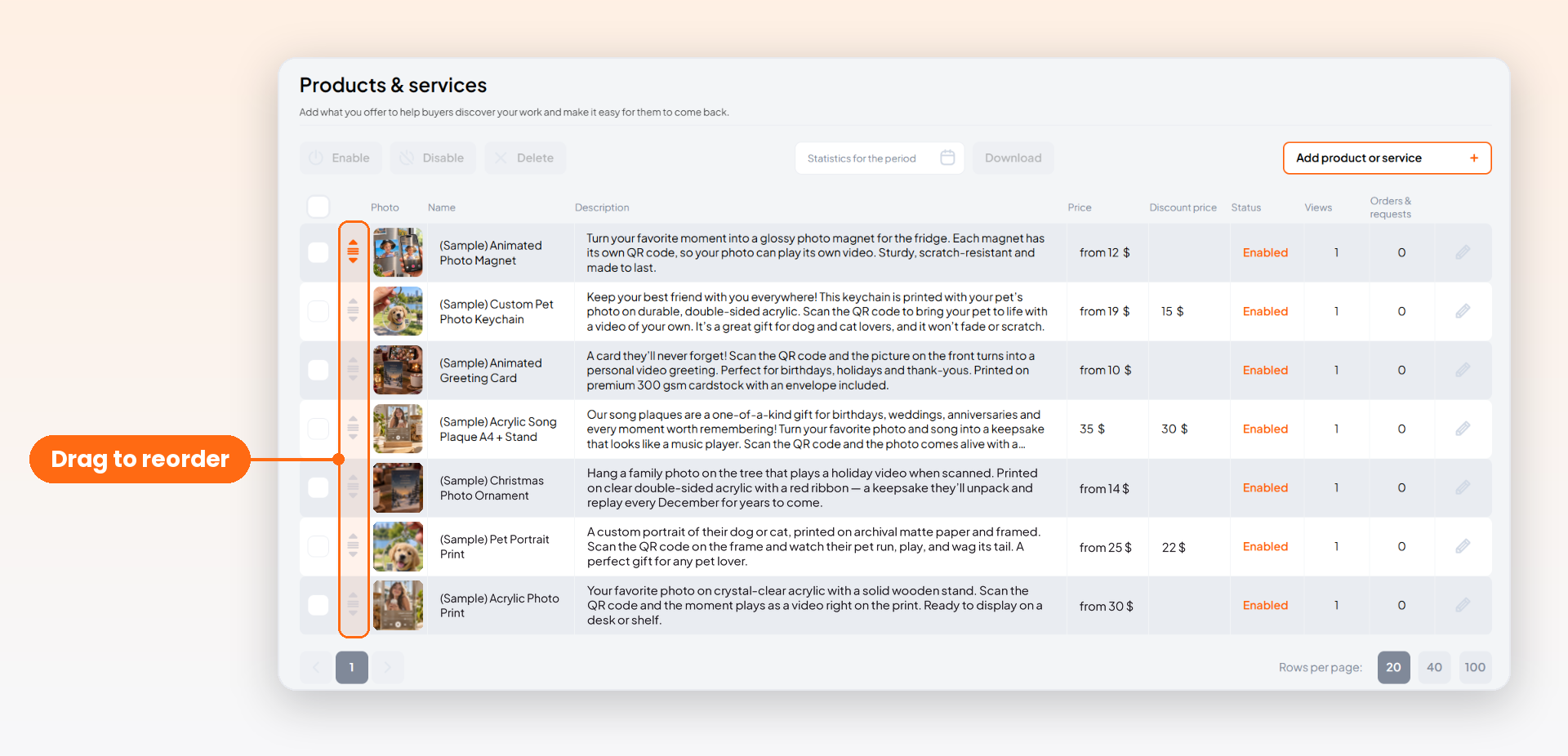
You can now set the order of your products yourself instead of seeing them only by creation date. Put bestsellers and seasonal items at the top, and move older products down.
The order you set in the dashboard is the same order customers see in your catalog in the AliveIt app. Change it once, and both update.A meaningful photograph does not need to be complicated. Look for a recognizable subject and a composition that remains clear at the actual printed size. Check the crop before adding decorative elements or instructions.
The order you set in the dashboard is the same order customers see in your catalog in the AliveIt app. Change it once, and both update.A meaningful photograph does not need to be complicated. Look for a recognizable subject and a composition that remains clear at the actual printed size. Check the crop before adding decorative elements or instructions.
How to use it:
- Go to Your store → Products & services.
- Grab the handle to the left of a product's photo.
- Drag the product up or down to where you want it. The new order shows in the app right away.
Replace a trigger image yourself
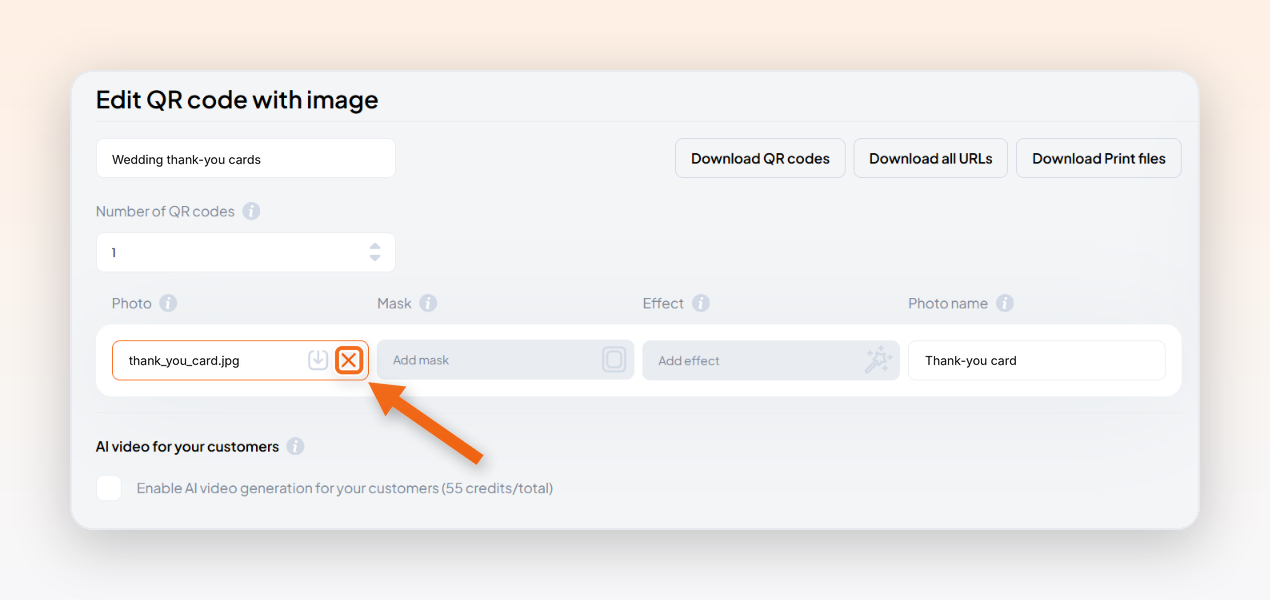
One of the most requested features is here: you can now change the trigger image on any AR activation on your own. The trigger image is the picture the phone camera recognizes to start the video.
This helps when you've updated a product design, reprinted with new colors, or uploaded the wrong photo by mistake. Swap the image, and the same video and QR code keep working — no need to create the activation again.Leave enough space around important faces and details. A frame, trim line, or fold should not cut through the part of the image that carries the memory. Print a small proof before committing to a larger batch.
This helps when you've updated a product design, reprinted with new colors, or uploaded the wrong photo by mistake. Swap the image, and the same video and QR code keep working — no need to create the activation again.Leave enough space around important faces and details. A frame, trim line, or fold should not cut through the part of the image that carries the memory. Print a small proof before committing to a larger batch.
How to use it:
- Open Activation history and find the activation by its name or QR code ID.
- Click the list icon next to the activation's name, then click the pencil icon at the end of the QR code's row.
- Delete the old image in the Photo cell, upload the new one, and click Update.
What's next
All four updates are live now — just log in to your dashboard. We build AliveIt around seller feedback, so if there's something you'd like to see next, reply to any of our emails or message us. More updates are on the way.